The Invisible UI: Designing Terminal Interfaces to Reduce Friction
May 15, 2026
11 min
During the development of TakeASide — a multi-layered IoT ecosystem involving hardware, APIs, dashboards, and live video streaming—the real friction wasn’t inside the system components themselves. It was in the human friction of keeping local environments synchronized during intensive development. When a simple script no longer suffices, documentation shouldn't just be static text. I developed a way to turn our internal operational processes directly into software.
1
The challenge
Managing complex local setups, environment drift, and platform disparities between Mac and Windows without slowing down.
2
Solution
An interactive terminal user interface built with custom Bash scripts and orchestrated through a native Makefile.
3
Approach
Abstracting an complex sequence of commands behind automated, visual selection flows.
4
Outcome
Eliminated repetitive configuration mistakes, enabled rapid context - switching, and created a calmer development workflow.
1. The Problem: Invisible Developer Friction
As software systems scale, their operational complexity grows silently in the background. For TakeASide, the technical stack I architected was wide: a Next.js dashboard, a NestJS API, a Prisma ORM database layer and LiveKit WebRTC servers running inside Docker containers.
To get a fresh workspace or reset to a known baseline, we had to orchestrate a delicate sequence of operations:
docker compose downdocker compose up --buildnpx prisma migrate reset --forcenpx prisma db seed
Eventually, human memory hits its limit. People forget subtle sequence flags. Local environments silently drift apart. New configurations are added while the stream of unknowns and questions keeps growing.
2. Treating the Terminal Like a User Interface
To solve this, I stopped seeing the terminal as a dumping ground for arbitrary utility commands. I started treating it like a legitimate digital product. If our end users deserved intentional accessibility and clear feedback loops, we did too.
Instead of writing a lengthy README that would quickly become outdated, I designed an entry script that turned onboarding into an interactive flow. Typing a single, memorable command—make dev-build—launched a guided terminal wizard I built on top of Unix shell scripts.
By manipulating standard bash inputs and leveraging ANSI color codes, I could prompt with clear, visual choices:
◆ TakeASide — Application State
┄┄┄┄┄┄┄┄┄┄┄┄┄┄┄┄┄┄┄┄┄┄┄┄┄┄┄┄┄┄┄┄┄┄┄┄┄┄┄┄

 Update local node_modules (npm install)?

 ● YES — Recommended if package.json changed
 ○ NO  — Skip, use existing modules (fast)
Using arrow keys to navigate and Enter to confirm, we no longer needed to recall syntax variations. The interface abstractly handled the sequence under the hood, transforming raw infrastructure into guided human intent.
3. Designing for Calm, Not Just Automation
Good Developer Experience is inherently emotional. Automation saves time, but intentional interface design eliminates uncertainty. I purposefully brought explicit UX principles into the script architecture.
First, I implemented a strict visual design system inside the shell using a custom brand identity that matched our project's accent palette:
# —————— Theme Colors (Primary Accent: #ff6633) ——————
ORANGE='\033[38;2;255;102;51m'
DIM='\033[2m'
BOLD='\033[1m'
RESET='\033[0m'
MUTED='\033[90m'

draw_header() {
  local title=$1
  clear
  echo -e "${ORANGE}◆ TakeASide — ${title}${RESET}"
  echo -e "${DIM}┄┄┄┄┄┄┄┄┄┄┄┄┄┄┄┄┄┄┄┄┄┄┄┄┄┄┄┄┄┄┄┄┄┄┄┄┄┄┄┄${RESET}\n"
}
I deliberately prioritized line spacing, distinct typography, and structured micro-interactions. If we were about to perform a potentially destructive action — like a hard database reset — the terminal shouldn't just run it in the dark. I wanted it to clearly structure the progressive disclosure steps leading up to it, ensuring peace of mind before the script executes.
source "$(dirname "$0")/common.sh"

sel=0
while true; do
  draw_header "Dependencies"
  echo -e "  ${MUTED}Update local node_modules (npm install)?${RESET}\n"

  if [ "$sel" -eq 0 ]; then
    echo -e "  ${ORANGE}●${RESET} ${BOLD}YES${RESET} ${DIM}— Recommended if package.json changed${RESET}"
    echo -e "  ${DIM}○ NO  — Skip, use existing modules (fast)${RESET}"
  else
    echo -e "  ${DIM}○ YES — Recommended if package.json changed${RESET}"
    echo -e "  ${ORANGE}●${RESET} ${BOLD}NO ${RESET} ${DIM}— Skip, use existing modules (fast)${RESET}"
  fi

  key=$(read_key)
  case "$key" in
    $'\x1b[A'|$'\x1b[B') sel=$(( 1 - sel )) ;;
    '') break ;;
  esac
done

exec 1>&3
[ "$sel" -eq 0 ] && echo "yes" || echo "no"
4. Platform cross-compatibility
One of our biggest friction points was environment cross-compatibility. Those running macOS experienced instant file-system file change hot-reloading. Those running on Windows via WSL2 found their file watchers failing to pick up changes unless polling flags were explicitly forced (WATCHPACK_POLLING=true).
Instead of polluting our codebase with environmental .env files or instructing Windows users to manually copy-paste obscure environment variables, I moved the detection directly into the machine layer.
I designed our Makefile to dynamically orchestrate platform checks through the platform terminal script, configuring the correct volume flags and environment variables on the fly based on the user’s system.
dev-build: setup
	$(eval PLATFORM := $(shell bash scripts/setup-wizard/ui-platform.sh))
	$(eval DEPS := $(shell bash scripts/setup-wizard/ui-deps.sh))
	$(eval POLLING := $(if $(filter windows,$(PLATFORM)),export WATCHPACK_POLLING=true; export CHOKIDAR_USEPOLLING=true;,export WATCHPACK_POLLING=false; export CHOKIDAR_USEPOLLING=false;))
	$(eval SEED_TYPE := $(shell bash scripts/setup-wizard/ui-init.sh))
	./scripts/generate-livekit-config.sh .env.dev livekit.generated.yaml
	@if [ "$(DEPS)" = "yes" ]; then \
		cd apps/api && npm install; \
		cd ../dashboard && npm install; \
		fi
	docker compose $(COMPOSE_DEV) down
	docker compose $(COMPOSE_DEV) build --no-cache
	$(POLLING) docker compose $(COMPOSE_DEV) up -d
	docker compose $(COMPOSE_DEV) exec api npx prisma migrate reset --force
	docker compose $(COMPOSE_DEV) exec api sh -c "SEED_TYPE=$(SEED_TYPE) npx prisma db seed"
	docker compose $(COMPOSE_DEV) logs -f
By querying the underlying architecture, the system safely figures out the exact requirements, smoothly mounting the correct volume flag configurations dynamically behind the scenes. We simply selected our platform in the terminal, and the tool configured itself.
5. Seeding the Right Experience
In a multi-app IoT platform, different stakeholders require radically different runtime conditions. A developer building an isolated component needs an entirely clean baseline state. A designer evaluating layouts or while running a live demonstration we need a system populated with comprehensive mock data.
I mapped these varied contexts directly onto our database seed process by passing options into Prisma via the Terminal interface.
The application initialization wizard I built allowed us to select from three distinct starting states:
- DEMO MODE Automatically injects 26 pre-generated, micro-framed questions, skips onboarding, and brings the workspace into an instantly active production simulation.
- SKIP ONBOARDING Pre-configures an administrative account and tenant branding setups, allowing developers to go straight to a login screen.
- MANUAL SETUP A completely clean slate that preserves a pure environment for debugging registration procedures from absolute scratch.
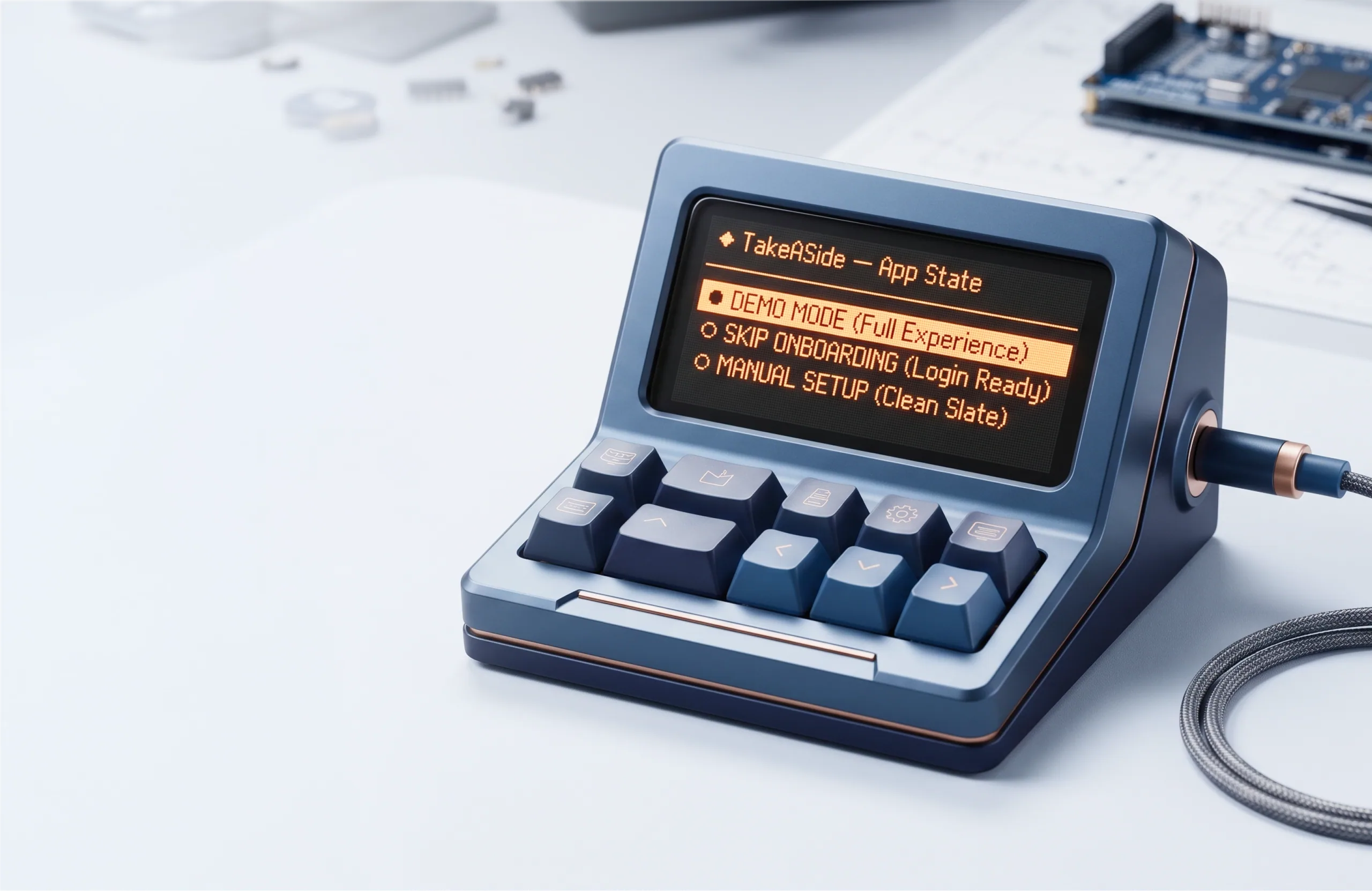
◆ TakeASide — Application State
┄┄┄┄┄┄┄┄┄┄┄┄┄┄┄┄┄┄┄┄┄┄┄┄┄┄┄┄┄┄┄┄┄┄┄┄┄┄┄┄

 How should the application start?

 ● DEMO MODE (Full Experience)
   → Skip onboarding + add 26 micro-framed questions

 ○ SKIP ONBOARDING (Ready to login)

 ○ MANUAL SETUP (Clean Slate)
Applying software product thinking directly to internal local data workflows meant no one had to manually toggle code values or swap out JSON fixtures before showing the application to stakeholders.
6. The results: Calm, Confident Development
The results were immediate and profound. The terminal UI became the single source of truth for how to interact with our development environment, and it completely transformed our internal workflows.
The custom terminal UI in action, guiding a developer through environment setup and configuration.
7. Why This Mattered More Than Expected
Building a specialized terminal layout script wasn't a distraction or an exercise in aesthetic polish. It completely altered how we as a team collaborated.
- Vanishing Support Overhead: Repetitive setup questions vanished entirely from our communication channels.
- Frictionless context-switches: Switching between clean testing environments and fully seeded demo states became a single command, eliminating the mental overhead of remembering how to toggle between them.
- Psychological Safety: Wiping a broken state became safe and routine, giving us the absolute confidence to tear things down and rebuild them without breaking our workflow.
Ironically, while we focused heavily on building an intuitive experience for our end users, I found that our internal development environment demanded that exact same philosophy.
Conclusion: Clear Tooling, Calm Minds
True architectural scalability is about more than just keeping file paths clean or decoupling complex code structures. It's about designing sustainable human workflows around those systems.
This small terminal layout quietly became one of the most critical structural anchors of the project—not because it looked sleek, but because it took systemic complexity and made it feel entirely manageable for the people building it alongside me. By consciously choosing isolation and predictability, you lay a foundation that you and others will be grateful for later.